Data Load
The Data Load activity allows users to manually upload CSV or Excel files that will be imported into a staging table in the application.
Purpose
Use the Data Load activity to:
- Manually import data from CSV files into staging tables
- Manually import data from Excel files into staging tables
- Collect data files from users as part of a workflow process
Configuration
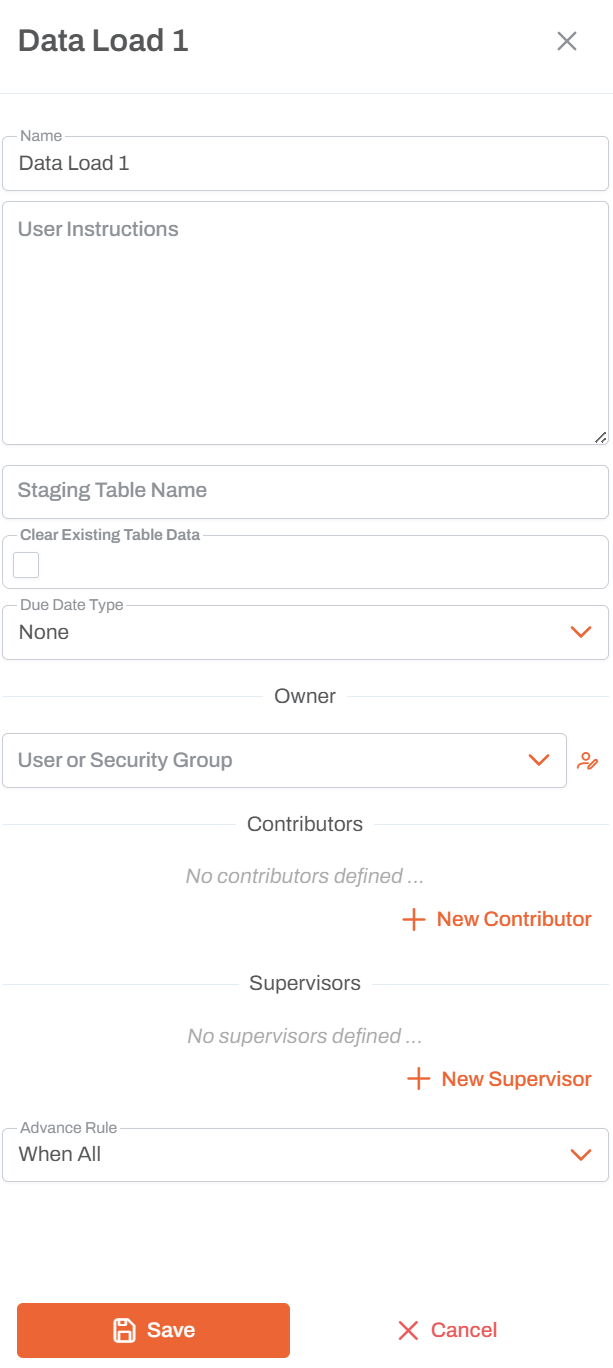
Name
- Activity Name: Unique identifier for this data load in the workflow
- Used to reference the activity in workflow design and execution logs
User Instructions
- Instructions Field: Large text area for detailed instructions
- Provide clear, step-by-step guidance for the assigned user
- Specify the expected file format, column structure, and data requirements
- Supports multi-line text for comprehensive task descriptions
Staging Table Name
- Target Table: Specify the staging table where data will be loaded
- Must be an existing staging table in the application
- Data from the uploaded file will be imported into this table
- This field is specific to Data Load and is required
Clear Existing Table Data
- Checkbox Option: Determines data loading behavior
- Unchecked (default - Append Mode): New data is added to existing data in the staging table
- Checked (Replace Mode): Clears the staging table before loading new data
- Use Replace Mode when you want to start fresh with each upload
- Use Append Mode when accumulating data over multiple uploads
Due Date Type
Configure when the data load should be completed:
- None: No deadline specified
- Fixed Date: Set a specific due date
- Relative: Set deadline relative to workflow start or previous activity
Owner
- User or Security Group: Assign the data load to a specific user or group
- The owner is responsible for completing this activity.
- Only one owner can be assigned per data load
- Click the icon to browse and select from available users and groups
Contributors
- Add Multiple Contributors: Users who can assist with the data load
- Contributors can view and work on the task alongside the owner
- Click + New Contributor to add users or groups
- Useful when multiple people may need to upload data
Supervisors
- Add Multiple Supervisors: Users who oversee the data load
- Supervisors can monitor progress and completion
- Click + New Supervisor to add users or groups
Advance Rule
Determines when this activity is triggered based on predecessor activities:
- When All: Activity starts only after all predecessor activities complete (default)
- When Any: Activity starts when any predecessor activity completes
- When First: Activity starts the first time any predecessor completes, then ignores others
File Upload Process
When a user reaches this activity in a workflow:
- They are prompted to select a CSV or Excel file from their computer
- The file is uploaded to the application
- Data is automatically imported into the specified staging table
- If "Clear Existing Table Data" is checked, the table is cleared first
- The activity completes and the workflow continues
Usage Notes
- Accepted File Types: CSV and Excel (.xlsx, .xls) files
- Data is loaded into staging tables, not directly into the model
- Typically followed by an ETL activity or stored procedure to process the staged data
- When the activity completes, the upload shows as green/done in the workflow visualization
- Can be combined with Approval activity to validate uploads before processing
- Use ClearState activity in rejection flows to reset the Data Load status to gray
Common Patterns
Data Load with Validation
- Data Load - user uploads file
- Approval - reviewer validates the data
- If rejected → ClearState → loop back to Data Load
- If approved → ETL or Stored Procedure to process
Scheduled Data Load with Timeout
- Data Load and Delay (e.g., 12 hours) in parallel
- First to complete wins
- Stop the workflow if timeout reached without data load
- This prevents accumulation of pending tasks when users don't upload on schedule
Data Load with ETL Processing
- Data Load → Upload to staging table
- ETL Activity → Process data from staging to model
- Notification → Confirm completion
Best Practices
- Clear Instructions: Provide detailed instructions about the expected file format, required columns, and data structure. When prompted for a file the user can download a cvx or excel template.
- Specify Table: Always specify the correct staging table name
- Choose Mode Carefully:
- Use Append Mode for incremental data loads
- Use Replace Mode for full refreshes or when historical data isn't needed
- Appropriate Assignment: Assign to users who have access to the source data
- Set Deadlines: Use Due Date Type when timely data upload is critical
- Combine with Validation: Follow with Approval or validation steps to ensure data quality
- Document Format: Clearly document the expected file format, including:
- Column names and order
- Data types for each column
- Required vs. optional fields
- Date formats and other formatting requirements