Approval
The Approval activity extends the Action activity to provide a decision-making task with two distinct outcomes: Approved or Rejected.
Purpose
Use the Approval activity when you need a user to review and make a binary decision on:
- Data submissions
- Process continuations
- Workflow progressions
Configuration
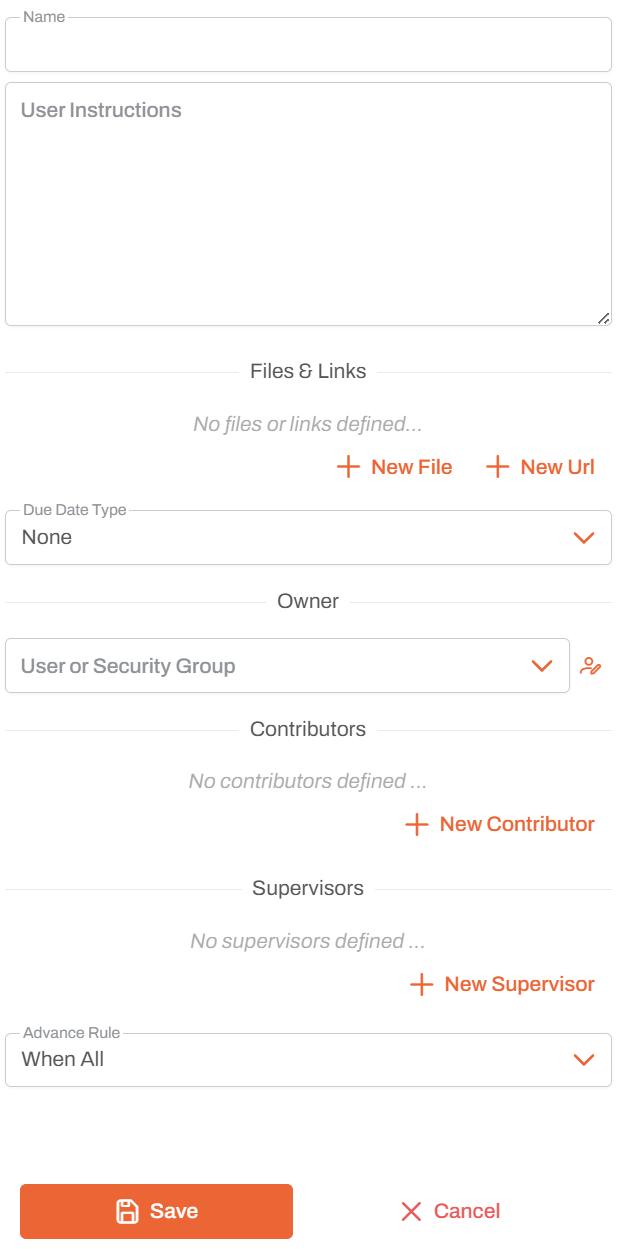
Name
- Activity Name: Unique identifier for this approval in the workflow
- Used to reference the activity in workflow design and execution logs
User Instructions
- Instructions Field: Large text area for detailed instructions
- Provide clear, step-by-step guidance for the assigned user
- Supports multi-line text for comprehensive task descriptions
Files & Links
Add supporting materials to help users complete the approval:
- New File: Attach files from the application for reference
- New Url: Add links to external resources, documents, or systems
- Files and links appear in the approval view for easy access
Due Date Type
Configure when the approval should be completed:
- None: No deadline specified
- Fixed Date: Set a specific due date
- Relative: Set deadline relative to workflow start or previous activity
Owner
- User or Security Group: Assign the approval to a specific user or group
- The owner is responsible for making the approval decision
- Only one owner can be assigned per approval
- Click the icon to browse and select from available users and groups
Contributors
- Add Multiple Contributors: Users who can assist with the approval review
- Contributors can view and work on the task alongside the owner
- Click + New Contributor to add users or groups
- Useful for collaborative review processes
Supervisors
- Add Multiple Supervisors: Users who oversee the approval
- Supervisors can monitor progress and completion
- Click + New Supervisor to add users or groups
Advance Rule
Determines when this activity is triggered based on predecessor activities:
- When All: Activity starts only after all predecessor activities complete (default)
- When Any: Activity starts when any predecessor activity completes
- When First: Activity starts the first time any predecessor completes, then ignores others
Outcomes
The activity provides two exit paths that you can connect to different workflow branches:
- Approved: Workflow continues down the approved path
- Rejected: Workflow continues down the rejected path
Usage Notes
- Built on the Action activity with added outcome routing
- The owner must explicitly select either Approved or Rejected
- Use with conditional branching to handle different outcomes appropriately
- Can be combined with ClearState activity in rejection scenarios to reset previous steps
- Use clear, actionable instructions to ensure proper review
- Attach relevant files and links to provide context for the approval decision
Best Practices
- Clear Instructions: Write detailed, step-by-step instructions in the User Instructions field
- Appropriate Assignment: Assign to users who have the authority to approve/reject
- Include Context: Add files and links that provide necessary background information
- Set Deadlines: Use Due Date Type when timely approval is important
- Use Contributors: Add contributors for approvals that benefit from collaborative review
- Add Supervisors: Include supervisors when oversight or approval tracking is needed
- Document Criteria: Clearly state what criteria should be used for approval/rejection decisions