Data Validation
Data validation is used to validate user input when editing matrix cells. It helps ensure data integrity by providing feedback to users based on configurable validation rules.
Validation Levels
Data validation supports three different levels of warnings, each with distinct behavior:
| Level | Behavior | Blocks Input |
|---|---|---|
| Info | Displays an informational popup about the current input | No |
| Warn | Displays a warning popup about the current input | No |
| Error | Displays an error popup and resets the cell value | Yes |
Info and Warn
When a validation rule triggers an Info or Warn level message:
- A popup notification appears informing the user about their current input
- The user can acknowledge the message and continue
- The entered value is not blocked and will be saved
These levels are useful for soft validations where you want to alert users about potential issues without preventing data entry.
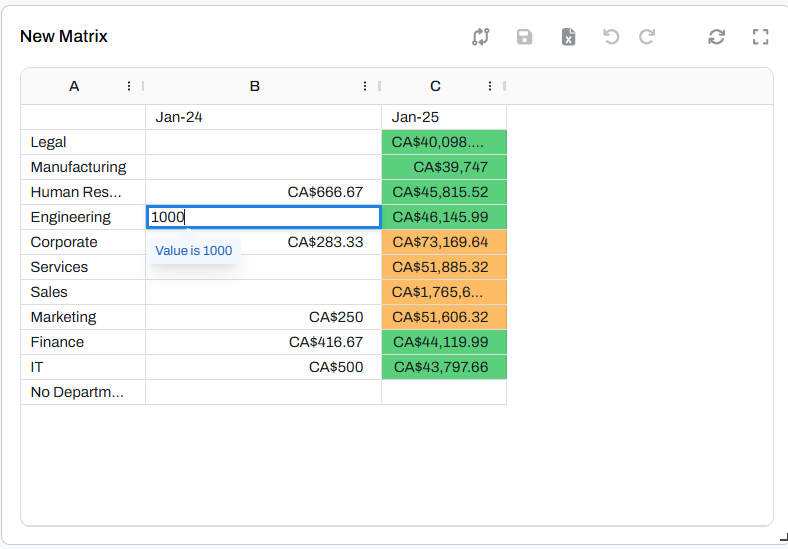
An example of an info popup displayed when a validation rule triggers an Info level message
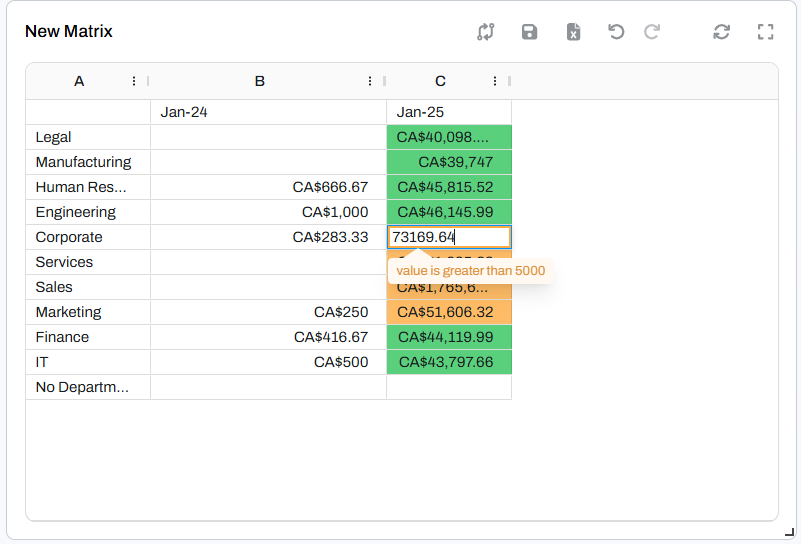
An example of a warning popup displayed when a validation rule triggers a Warn level message
Error
When a validation rule triggers an Error level message:
- A popup notification appears warning the user about the invalid input
- The cell value is reset automatically upon entering
- The reset value can be either:
- The previous value (before the edit)
- A custom value defined in the validation rule
This level is used for hard validations where invalid data must be prevented from being saved.
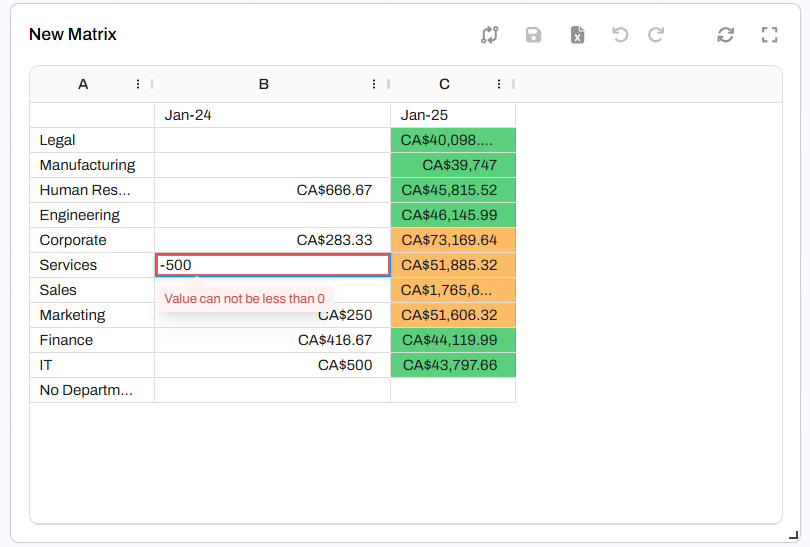
An example of an error popup displayed when a validation rule triggers an Error level message
Editing Validation Rules
The data validation editor can be found in Rules → Validation Rules within the matrix widget settings.
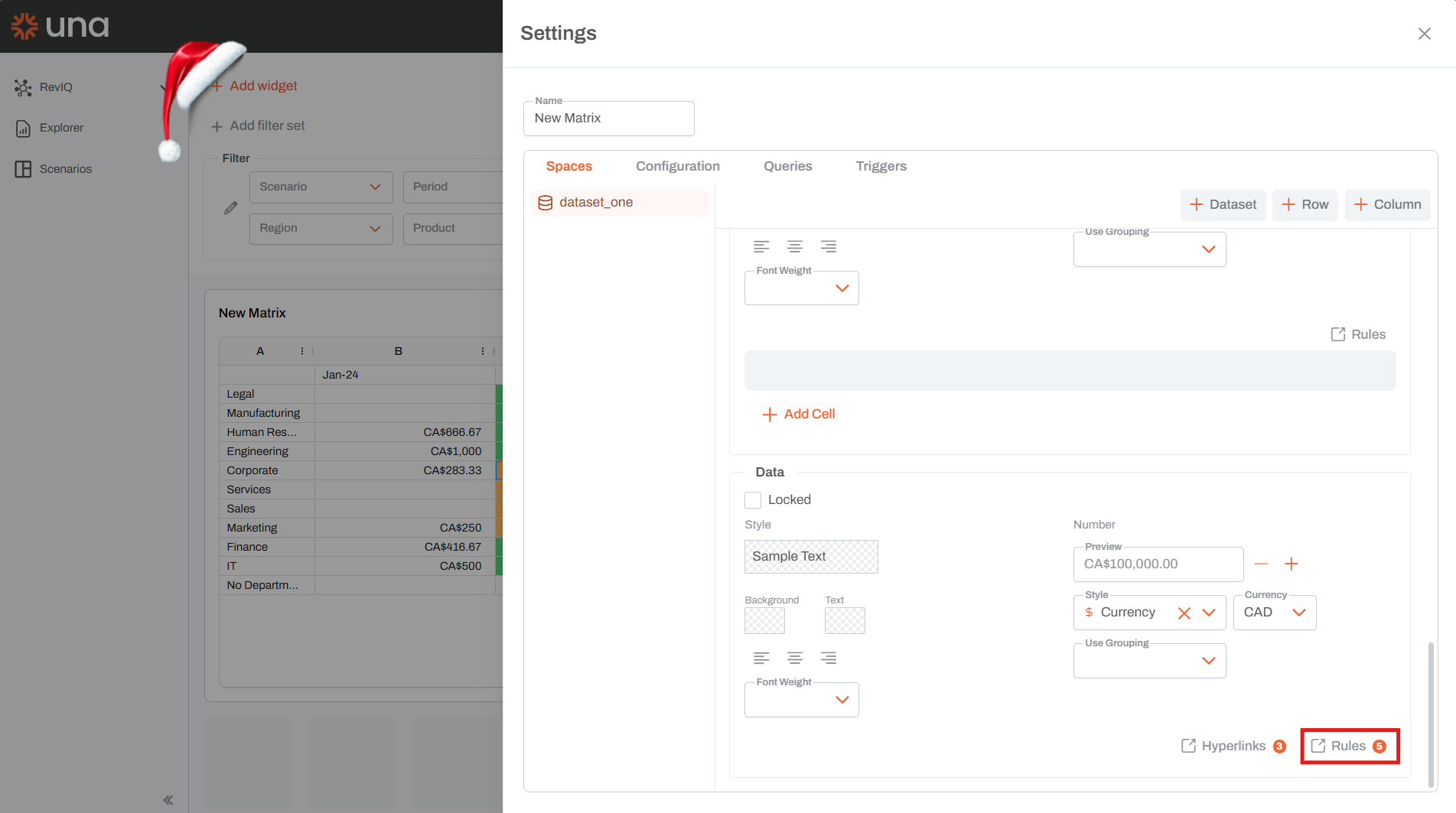
Navigate to Rules → Validation Rules to access the data validation editor
Managing Validation Rules
Users can add, remove, and reorder data validation rules using the editor interface.
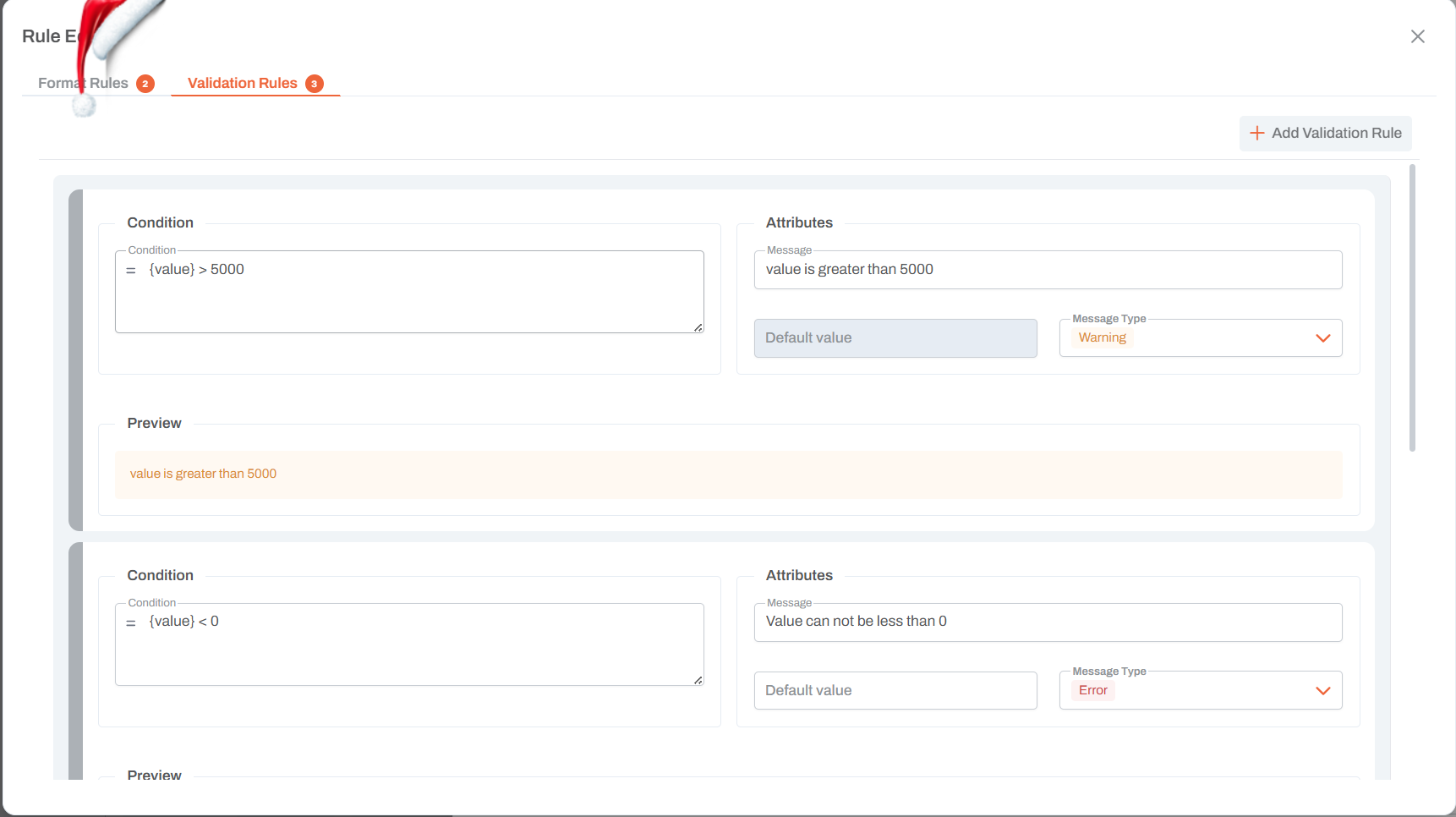
The data validation editor interface
Condition
The left text area contains the condition expression. This determines when the validation rule should be triggered based on the cell being edited.
Attributes
The attributes panel on the right allows you to configure the validation rule behavior:
| Attribute | Description |
|---|---|
| Message | The custom message to display when the validation rule is triggered |
| Default Value | The value to reset the cell to when an Error level validation is triggered |
| Message Type | The validation level: Info, Warn, or Error |
Preview
Below the attributes and condition panels is the preview area. This displays a live preview of the validation popup and message, allowing you to see exactly how it will appear to users when triggered.