Import Definitions
An Import Definition describes how the rows of a staging table become data in a model: which column feeds which dimension and measure, how source values are turned into dimension members, which existing data is cleared before the new rows are written, and which dimension members are created on the way. Running an Import Definition is called a Data Load.
Import Definitions live under Settings → Integrations → Import Definitions. The list shows every definition with its model and staging table. Definitions tagged Managed by integration were created by a connection (NetSuite, Sage Intacct, Campfire, HubSpot, Salesforce) and are read-only here: the integration owns them and rewrites them when its mapping changes. You can still run them.
Before you start
- The data is in a staging table. Every source field you want to load is a column of that table.
- The model is processed and its dimensions contain the members the data refers to, or you plan to create them with dimension updates.
- Where the source uses different codes or names than the model, a Data Map for that dimension exists.
Creating an Import Definition
Click Add New and fill in the header:
| Field | What it does |
|---|---|
| Name | Identifies the definition in the list, in the ETL workflow activity and in the ETL log. It cannot be changed after the definition is saved. |
| Model Name | The model the data is loaded into. Choosing it fills the Field Mapping tab with the model's dimensions and measures. |
| Staging Table Schema | client for tables you created, integrations for tables created by a connection. |
| Staging Table Name | The staging table to read. Choosing it fills the column choices on the Field Mapping tab. |
| Filter Clause | Optional SQL appended to the statement that reads the staging table, which is aliased s. Use it to take only some rows, for example where s.[Amount] <> 0, or to join a lookup table. Only the rows the filtered statement returns take part in the run. |
| Truncate the staging table after a successful load | Empties the staging table once a run has written its rows to the model, so the next staging load starts clean. Meant for models with a transaction detail table, which keeps the line-level rows; the editor warns when the model has none, because the detail is then gone once the table is truncated. |
Save with the Save button in the footer. The Run button next to it starts a Data Load; it is disabled while the definition has unsaved changes.
Field Mapping tab
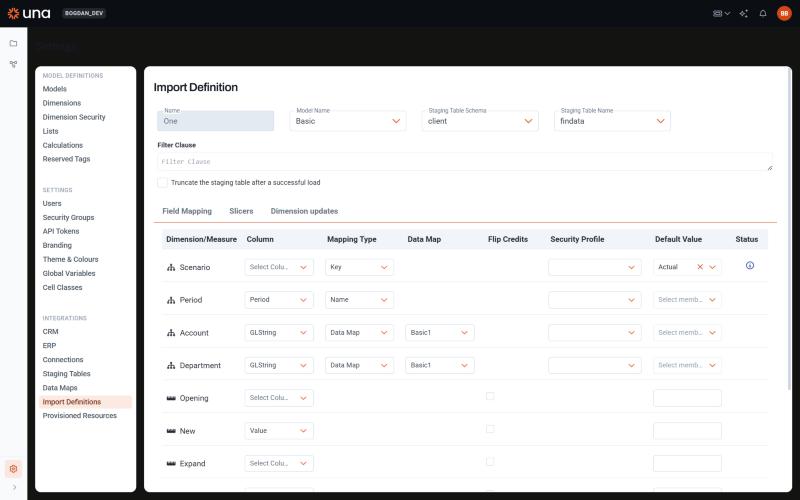
The tab lists one row per target in the model, always in the same order: the model's dimensions, then the five measures (Opening, New, Expand, Churn, Closing), then the columns of the model's transaction detail table when it has one. You do not add rows here; you tell each target where its value comes from.
| Column | What it does |
|---|---|
| Dimension/Measure | The target in the model. The icon shows whether it is a dimension, a measure or a transaction field. |
| Column | The staging table column that feeds the target. Leave it empty for a target that gets a default value instead. |
| Mapping Type | How the column's value is interpreted (see below). |
| Data Map | The Data Map to run the value through. Only used with the Data Map mapping type. |
| Flip Credits | For measures. When checked, the value is negated on rows whose account is a credit account (the account's Debit/Credit property is Credit). Use it when the source stores credits as negative numbers, as general-ledger exports do, so that the model receives values in its natural sign. |
| Security Profile | Reserved for a future release. It is saved with the definition but has no effect on the load today. |
| Default Value | The value used for every row when no column is mapped: a member of the dimension, or a constant for a measure. |
| Status | A red icon marks a problem that stops the load (a dimension with neither a column nor a default value). An information icon marks something to be aware of, such as a default value in use or no measure mapped at all. Hover over it for the message. |
Mapping types
| Mapping type | The staging value is… | A row fails when… |
|---|---|---|
| Key | The numeric key of a member of the dimension. Typical for Period, where the source carries a value such as 202601 that matches the period key. | The value is not a whole number, or no member has that key. |
| Name | The name of a member of the dimension, compared case-insensitively. | No member has that name. |
| Data Map | A source value that a Data Map translates into a member name. Pick the map in the Data Map column. | No rule of the map matches the value, or the rule's result is not the name of a member. |
| Measure | A number for a numeric measure, or text for a text measure. An empty value loads as no value. | The value cannot be converted to the measure's type. |
| Transaction field | Copied as-is into the named column of the model's transaction detail table. Rows for these columns appear only when the model has such a table. | The value cannot be converted to the column's type. |
| Ignore | Not read. Use it, together with Default Value, for a target the file does not carry: for example, a file with no scenario column loaded into Actual. | — |
A dimension can be fed from the same staging column as another dimension. In the screenshot above, one GLString column feeds both Account and Department through two different Data Maps.
How rows are combined
Rows whose mapped dimension members are all the same are added together before they are written, so the fact table receives one row per combination of members: numeric measures are summed and text measures are concatenated. The transaction detail table, when the model has one, keeps every staging row as it is.
Slicers tab
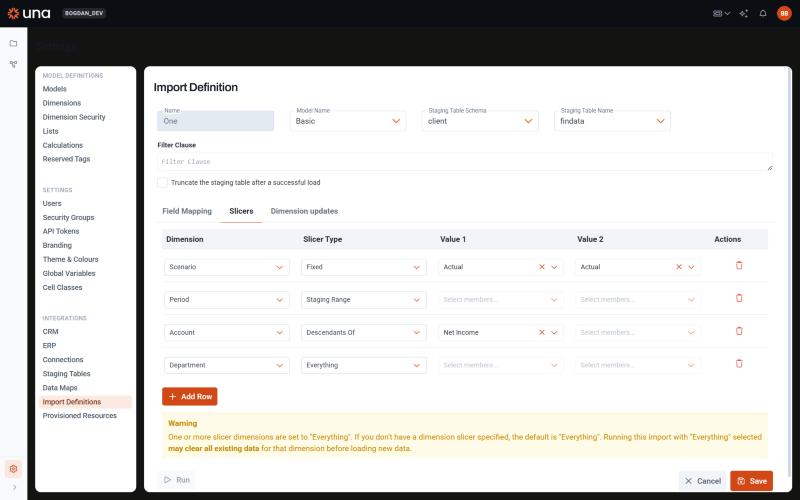
A load replaces data: before the new rows are written, the rows they replace are deleted. Slicers say which rows those are, one slicer per dimension. The delete affects the fact table and, when the model has one, the transaction detail table; the rows deleted are those that satisfy every slicer at once.
A dimension without a slicer row is treated as Everything. With no slicers at all, a Data Load clears the whole model before it writes. The editor shows a warning while any dimension is set to Everything, explicitly or by omission.
| Slicer type | Which members are cleared | Value 1 / Value 2 |
|---|---|---|
| Staging Unique Value | The single member the staging rows refer to. The run fails with Multiple values found in staging table when the rows refer to more than one member. | Not used. |
| Staging Range | Every member between the lowest and the highest member the staging rows refer to, in hierarchy order, including members the rows skip. This is the usual choice for Period: loading January to May clears January to May even when March is missing from the file. | Not used. |
| Staging Multiple Values | Exactly the members the staging rows refer to, nothing in between. Use it for dimensions such as Department or Entity, where a file that carries two departments must not touch the ones between them. | Not used. |
| Fixed | Every member between two named members, in hierarchy order. | Value 1 and Value 2 are member names. Leave Value 2 empty to clear a single member. The run fails when a name is not found. |
| Descendants Of | A named member and everything below it, for example the whole Income Statement. | Value 1 is the member name. |
| Everything | The whole dimension. | Not used. |
Staging Unique Value, Staging Range and Staging Multiple Values look at the members the current run's rows map to, after Data Maps and default values are applied, so they work for a dimension with a default value as well as for a mapped column.
A typical set for a monthly actuals file: Account Staging Unique Value or Descendants Of the loaded statement, Period Staging Range, Scenario Fixed with Actual in Value 1.
Dimension updates tab
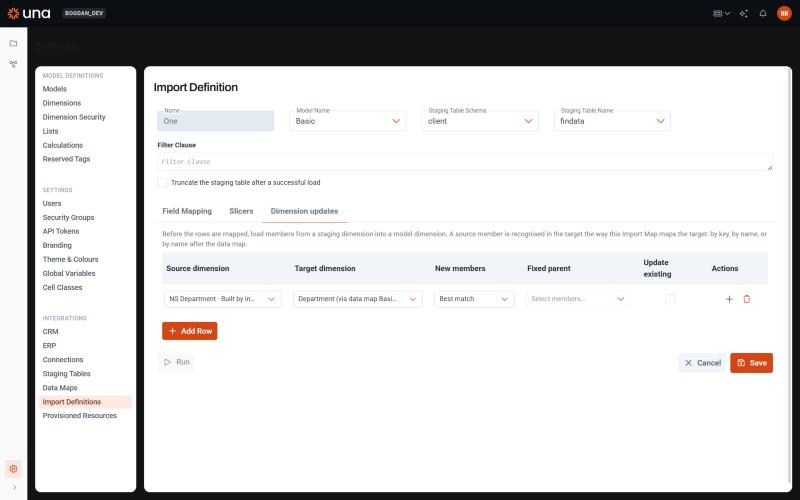
Connections can build staging dimensions without a model (see Integrations), so a department, vendor or account that appears in the ERP is available in Una as a dimension member before anybody edits a hierarchy by hand. A dimension update copies the members of such a dimension into one of the model's dimensions at the start of every Data Load, so the fact rows of the same run can refer to the new members. Any dimension can be a source, not only one built by a connection.
When the data arrives without any dimension at all, which is the usual case for systems loaded through an integration platform rather than a connection, the staging rows themselves can be the source: see Members from staging values.
Each row is one source → target pair:
| Field | What it does |
|---|---|
| Source dimension | The dimension to take members from. Dimensions built by a connection are listed first. The first entry, Staging values of followed by the column name, takes the members from the staging column mapped to the target instead of from a dimension. |
| Target dimension | A dimension of the model that this Import Definition maps from a staging column, by Key, Name or Data Map. The mapping type is shown after the name, because it decides how a source member is recognised in the target. |
| New members | What to do with a source member that does not exist in the target: Best match, Fixed parent or Mapping only (see below). |
| Fixed parent | The target member new members go under in Fixed parent mode, and the fallback in Best match mode when no ancestor of the source member exists in the target. |
| Update existing | Also apply the property mappings to members that already exist in the target. |
| Property mappings | Pairs of source property → target property to copy, added with the + button on the row. Name on both sides means the member name, so under Key mapping a rename in the source becomes a rename in the target. |
How a source member is recognised
The target's mapping type on the Field Mapping tab decides it, because it is also how the fact rows will refer to the member:
| Target mapped by | A source member exists in the target when… | A new member is created… |
|---|---|---|
| Key | A target member has the same key. The two dimensions must share their key space, which is the case for a staging dimension and the model dimension built from it. | With the source key. |
| Name | A target member has the same name, ignoring case. A member renamed in the source is a new member, which is also what the fact rows would arrive under. | Under the source name. |
| Data Map | The source name, run through the map, is the name of a target member. | Under the mapped name. |
For a data-mapped target the outcome depends on what the map does with the source name:
| The map… | Best match / Fixed parent | Mapping only |
|---|---|---|
| Matches no rule | Error: the fact rows with that value could not be mapped either. Add a rule or a catch-all. | A rule is appended to the map, mapping the source name to the same target as its nearest source ancestor that maps to an existing member. |
| Yields an existing member | Matched; property mappings are applied when Update existing is on. | Nothing to do. |
| Yields a name that is not a member | The member is created under the mapped name. | Error: fix the rule by hand. |
Mapping only is only offered for data-mapped targets, and it has nothing to do when the map ends with a catch-all rule such as * → Other, since every value then matches something.
Where new members go
- Best match places the member under the target member that matches the source member's parent. When the parent is not in the target, its ancestors are tried in turn; when none matches, the Fixed parent is used, and when none is set, the member goes to the top level.
- Fixed parent places every new member under the named member, whatever the source hierarchy says.
New members are added after the last existing child of their parent, keep the source's leaf status, caption and translations, and get the properties listed in the property mappings. Edit them afterwards in Dimensions like any other member.
Members that are inactive in the source are added only when the run's staging rows refer to them; a member that is inactive and carries no data stays out. Members that disappeared from the source are never removed.
Members from staging values
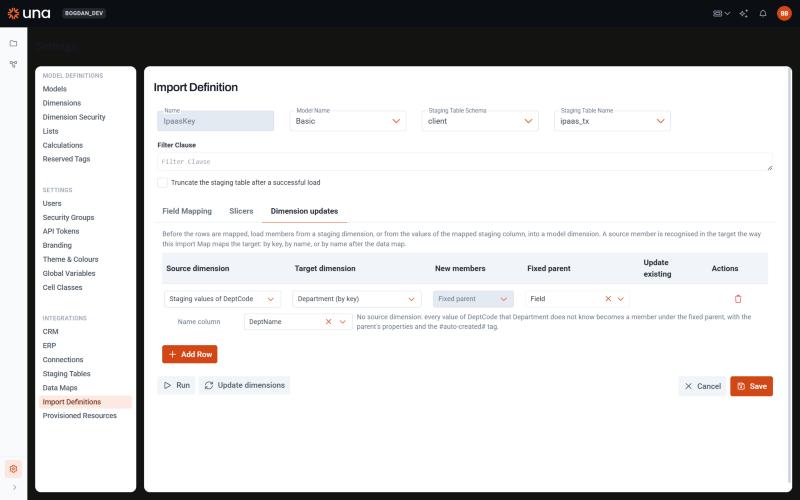
Systems loaded through an integration platform usually deliver transactions only. No staging dimension exists, so the only sign that a department or an account exists is the rows that refer to it, and a row that refers to an unknown member fails the load. Choosing Staging values of followed by the column name as the source turns that failure into a new member: every value of the column mapped to the target that the target does not know becomes a member under a parent you choose.
With this source:
- New members is fixed to Fixed parent, and the Fixed parent is required. There is no source hierarchy to match, so every new member goes under that one member, after its last child. Pick or create a member meant for the purpose, such as Unmapped departments, and move the members to their proper place later.
- New members take the fixed parent's properties, since a staging value carries none. For accounts this is what gives a new account the right type and sign, so choose a parent of the right kind. Update existing and property mappings do not apply and are hidden.
- New members are tagged
#auto-created#, so they are easy to find in Dimensions when you come to review them.
How a value becomes a member follows the target's mapping type, as it does for a source dimension:
| Target mapped by | A value is known when… | A new member is created… |
|---|---|---|
| Key | A member has that key. | With the value as its key. It is named after the key, or after the Name column when you set one (see below). |
| Name | A member has that name, ignoring case. | Under the value as its name. |
| Data Map, a rule matches | The rule's result is the name of a member. | Under the rule's result. |
| Data Map, no rule matches | — | Under the value itself, and an Exact rule value → value is appended to the map, so the map shows what happened and the next load resolves the value through it. When a member with that name already exists, only the rule is appended. |
Name column is offered for a key-mapped target. Extracts usually carry a code and a label side by side; name the label column here and a new member gets the label as its name and caption instead of 120. When the rows carry several labels for one key, the alphabetically first is used and the run reports it. When the label is already the name of another member, the key is added to it, as in Finance (140).
Values that the load could not use anyway are left alone, and the row fails in the mapping step with the usual message: a key that is not a positive whole number, or a name that is blank or padded with spaces.
Whatever a run adds is reported: in the message of the standalone action, on the Load data step of the Data Load notification, and in the ETL log.
Running dimension updates on their own
Once a definition has at least one dimension update, an Update dimensions button appears on its list row and in the editor footer. It runs the dimension updates without loading data, which is useful right after configuring them and for connections that only sync metadata. Because there are no staging rows to check, inactive source members are skipped in this mode; a later Data Load adds any that turn out to carry data. An update that takes its members from staging values reads the staging table as a load would, Filter Clause included.
Running a Data Load
Click Run on a list row or in the editor footer. The load runs in the background; a notification tells you it started, and the notification centre reports when it completes, finishes with validation errors, or fails. Only one load can run at a time for a given staging table; a second one is refused until the first finishes.
To run loads on a schedule or right after a staging load, use the ETL workflow activity, which takes the definition name, a Skip Validation switch and a timeout in minutes.
A run goes through these steps in order:
- Copy the staging rows that pass the Filter Clause into the history table
<staging table>_History. The history table holds the rows of the last run, each linked to the fact row it produced. - Dimension updates, so the new members exist before the rows are mapped. An error here stops the run.
- Map and validate every row: dimension values are turned into member keys, measure values are converted. Rows that fail are logged and skipped; after 100 failures the run stops reading, unless Skip Validation is on.
- Decide whether to write. With validation errors and Skip Validation off, nothing is written and the run finishes with validation errors. With Skip Validation on, the valid rows are written and the failed ones are left out.
- Clear the rows selected by the slicers, in the fact table and the transaction detail table.
- Write the transaction detail rows, then the combined fact rows.
- Truncate the staging table when the option is on.
When a run finishes with validation errors or fails, every message, including each validation error such as Value "4500" for dimension Account cannot be mapped, is kept in the ETL log (App_EtlLog) under the run's id, and shown in the notification and in the workflow activity's log. A run that succeeds leaves no messages, with one exception: when its dimension updates added or changed members, or appended data-map rules, those lines are logged and shown the same way.