UnaXL
How to deploy the UnaXL Excel add-in through Integrated Apps in the Microsoft 365 admin center using a custom manifest file.
Before you begin
- You must have permission to access the Microsoft 365 admin center and manage Integrated Apps.
- You need the link to the UnaXL add-in manifest file in XML format.
- The users receiving the add-in should have access to Excel and be signed in with their organizational Microsoft 365 account.
- Deployment can take time to appear for users, so plan for a short propagation window before testing broadly.
Deploy the UnaXL add-in in Integrated Apps
- Sign in to the Microsoft 365 admin center with an administrator account.
- Open Settings, then select Integrated apps.
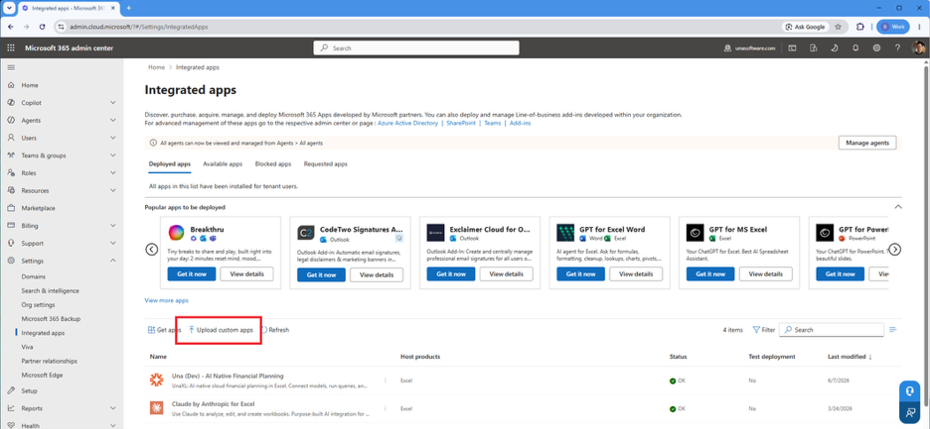
- On the Integrated apps page, select Add-ins, then choose Deploy Add-in.
- In the deployment wizard, choose the option to upload a custom add-in.
- Select Upload manifest file, browse to the UnaXL XML manifest file, and upload it.
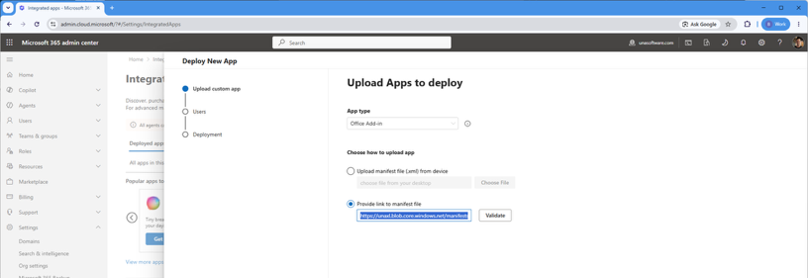
Production manifest location: https://unaxl.blob.core.windows.net/manifests/manifest.xml
- Click on Validate and Save.
- Choose who should receive the add-in: Everyone, Specific users/groups, or Just me for testing.
- Review the deployment details, then select Deploy.
- Wait for the confirmation that the deployment completed successfully.
What happens after deployment
After deployment, users may need to restart Excel and sign back in before the add-in appears. In some environments, centralized deployment changes can take up to 24 to 72 hours to become visible to all assigned users. For an initial rollout, it is a good practice to assign the add-in to a small test group first and confirm that UnaXL appears correctly in Excel before expanding deployment.
How users can verify the add-in
- Open Excel and sign in with the assigned Microsoft 365 account.
- Look for the UnaXL add-in on the ribbon or in the add-ins area of Excel.
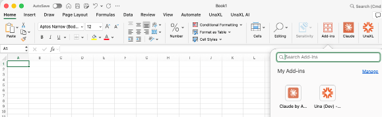
- If the add-in does not appear, restart Excel and try again after the deployment window has passed.
- If needed, confirm with your administrator that the correct user or group assignment was selected.
Troubleshooting
- Verify that the intended users or groups were selected during deployment.
- Ask users to restart Excel after deployment.
- If the add-in still does not appear, allow additional time for centralized deployment to finish propagating.
- If deployment fails in the admin center, contact support@una.ai with any messages presented when adding to the Integrated Apps area or within Excel.