Deploy UnaXL Add-ins in the Microsoft 365 admin center
This guide explains how a Microsoft 365 administrator can deploy the UnaXL Excel add-in to users in their organization. It also explains how to approve future UnaXL manifest updates.
Before you begin
You need:
-
Access to the Microsoft 365 admin center.
-
A Microsoft 365 administrator account that can deploy integrated apps.
-
The permanent UnaXL production manifest URL:
https://unaxl.blob.core.windows.net/manifests/manifest.xml
Use the production URL exactly as shown. The URL is case-sensitive and does not change between releases. Do not deploy a URL containing dev, staging, demo, or demoqa to end users.
Deploy UnaXL for the first time
-
Sign in to the Microsoft 365 admin center.
-
In the left navigation, select Show all, then go to Settings > Integrated apps.
-
Select Upload custom apps.
If this option is not shown, select Add-ins near the top of the page, then select Deploy Add-in > Next.
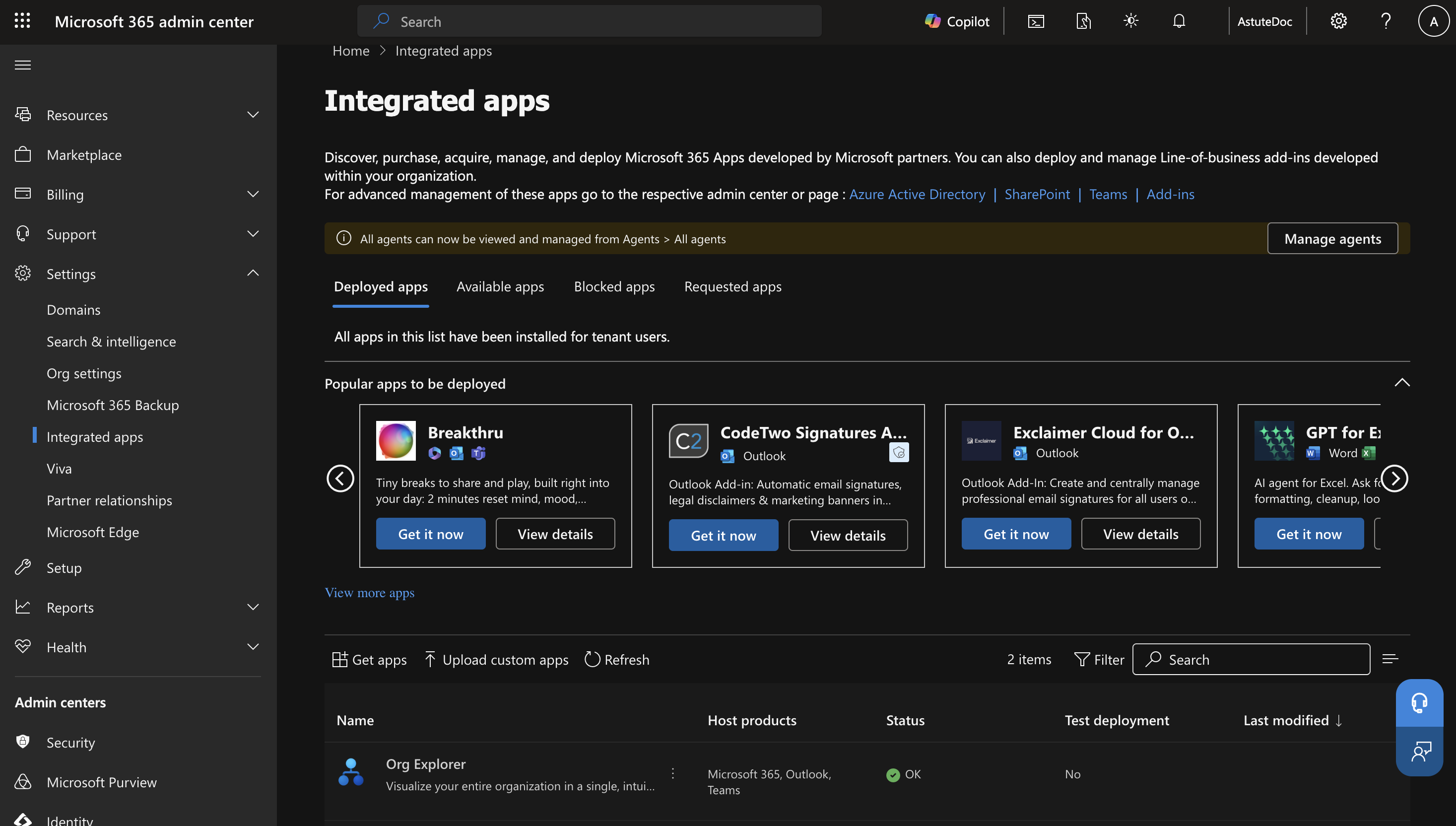
On the Integrated apps page, select Upload custom apps.
-
Choose the option to provide a link or URL to a manifest file.
-
Paste the permanent UnaXL production manifest URL:
https://unaxl.blob.core.windows.net/manifests/manifest.xml -
Select Validate or Upload, depending on the option displayed.
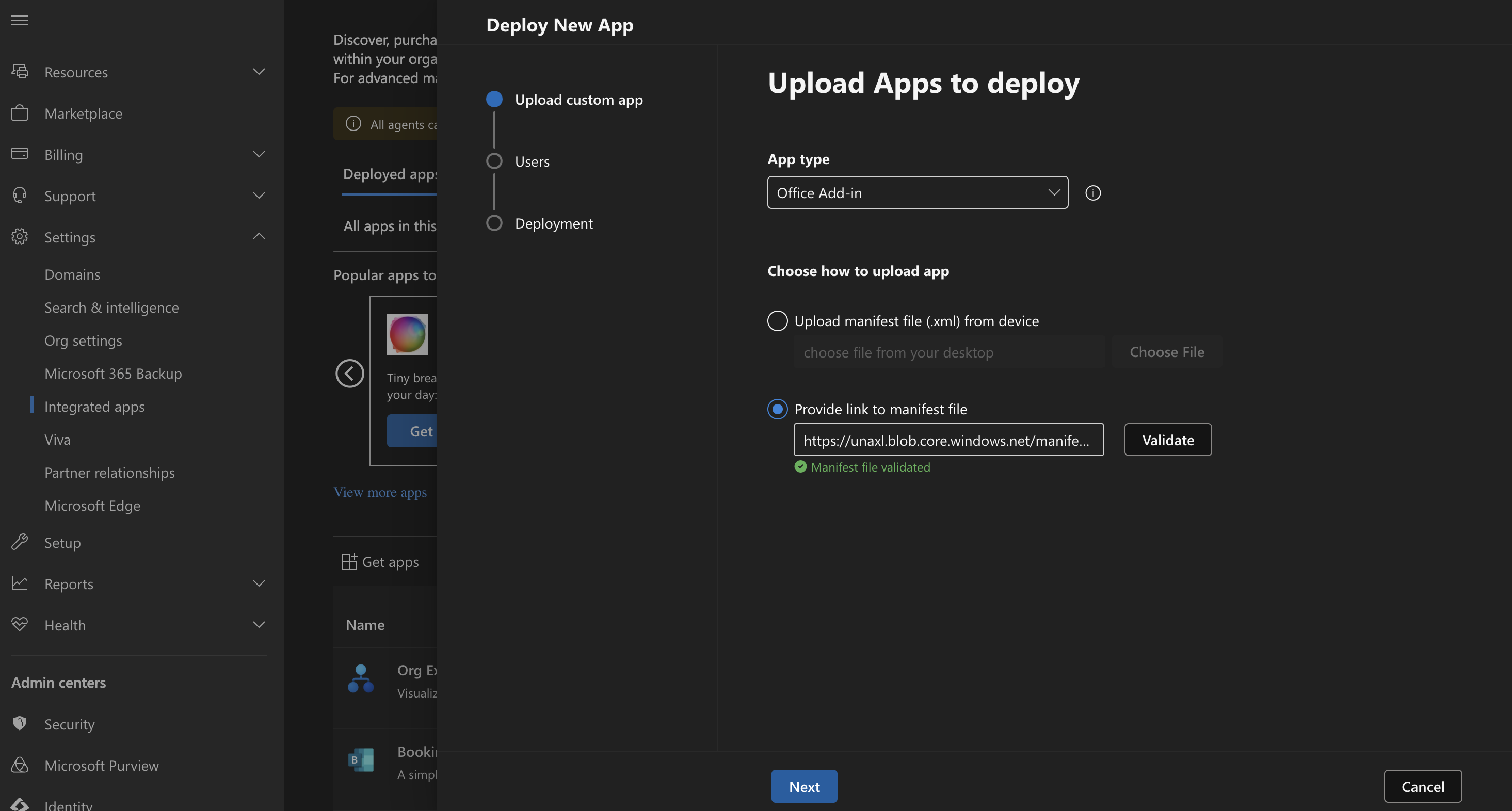
Choose Office Add-in, select Provide link to manifest file, paste the production URL, and validate it.
-
Confirm that the app details show:
- Name: Una - AI Native Financial Planning
- Provider: UnaXL
- Host: Excel
-
Review and accept the requested add-in permissions.
-
Choose who should receive UnaXL:
- Specific users/groups; or
- Everyone.
-
Select Deploy or Finish deployment.
Microsoft 365 shows a confirmation when the deployment is complete. Deployment can take 24–72 hours to appear for all assigned users.
Verify the installation
After Microsoft 365 reports that deployment is complete:
- Confirm that the intended users or groups are listed in the UnaXL app assignment.
- Ask an assigned user to completely close and reopen Excel.
- Open a workbook and look for the UnaXL tab in the Excel ribbon.
- On the UnaXL tab, select Show Task Pane.
- Confirm that the UnaXL task pane opens and the user can sign in.
If the ribbon tab does not appear immediately, wait for Microsoft 365 deployment to propagate and try again later.
Approve a future UnaXL update
The production manifest URL remains the same for every release. Una replaces the manifest at that URL when a production release requires an updated manifest.
Only perform these steps after receiving a production update notice from Una:
-
Sign in to the Microsoft 365 admin center.
-
Go to Settings > Integrated apps.
-
Search for and open Una - AI Native Financial Planning.
-
Select Update. This action can appear in the lower-right corner of the app details page or in the app's available actions.
-
Choose the option to provide a link or URL to the manifest.
-
Paste the same permanent production URL:
https://unaxl.blob.core.windows.net/manifests/manifest.xml -
Select Validate.
-
Review the update details, then select Accept update.
The existing user and group assignments remain in place. Users might need to close and reopen Excel after the update propagates.
If Microsoft 365 reports that the version is already deployed, no update is required. Confirm that the update notice was for the production environment and try again only after Una confirms that the production manifest has been published.
Troubleshooting
The manifest cannot be validated
- Confirm that the URL was pasted exactly as shown, with no spaces before or after it.
- Open the manifest URL in a browser. It should display or download an XML file.
- Confirm that your organization's firewall or proxy allows HTTPS access to
unaxl.blob.core.windows.net,xl.unasoft.app, andapi.unasoft.app. - Do not substitute a development or test manifest URL.
UnaXL does not appear in Excel
- Confirm that the user is included in the app's assignment.
- Completely close and reopen Excel.
- Confirm that the user is signed into Excel with the same organizational account that received the assignment.
- Allow up to 72 hours for Microsoft 365 deployment changes to propagate.
An update is not available
- The currently deployed manifest version might already be the latest version.
- Confirm that Una has announced a production manifest update. Updates to development, demo, or staging environments do not require client action.
- Reopen the UnaXL app details in the Microsoft 365 admin center and try again after the production manifest is published.
Contact Una support
If the issue continues, send Una support:
- A screenshot of the error.
- The date and time the deployment or update was attempted.
- Whether the issue affects the initial installation or an update.
- The users or groups selected for deployment.
- The Excel platform affected, such as Windows desktop, Mac, or Excel for the web.
Microsoft reference
For Microsoft's current centralized deployment instructions and requirements, see Deploy Office Add-ins in the Microsoft 365 admin center.