MCP
The Model Context Protocol (MCP) lets external AI assistants connect directly to Una and use its tools — queries, file system, actions, and more — from within their own interfaces. Once connected, an AI assistant can read data, run model queries, and interact with Una without leaving its native chat environment.
Before You Begin
Authentication
Depending on your client, you can authenticate with Una's MCP server using either OAuth or an API Token. OAuth is the recommended approach for interactive clients such as Claude Desktop and ChatGPT. API Tokens are better suited for developer tools like GitHub Copilot in VS Code.
Identifying Your Tenant
Every request to the MCP server must identify which Una tenant to connect to. There are three ways to do this:
- Request header — If your client supports custom headers, add a header named
tenantwith your tenant name as the value. - Scoped API Token — When generating an API Token, you can scope it to a specific tenant so no additional configuration is needed.
- Default tenant — Set a default tenant in the Una Portal under Settings → API Tokens. Requests that do not include a
tenantheader will fall back to this default.
MCP URL
Use the URL that corresponds to your Una environment:
| Portal | MCP Endpoint |
|---|---|
| portal.unasoft.app | https://api.unasoft.app/mcp |
| portal.dev.unasoft.app | https://api.dev.unasoft.app/mcp |
| portal.demo.unasoft.app | https://api.demo.unasoft.app/mcp |
| portal.demoqa.unasoft.app | https://api.demoqa.unasoft.app/mcp |
| portal.staging.unasoft.app | https://api.staging.unasoft.app/mcp |
You will need this URL when configuring the clients below.
Claude
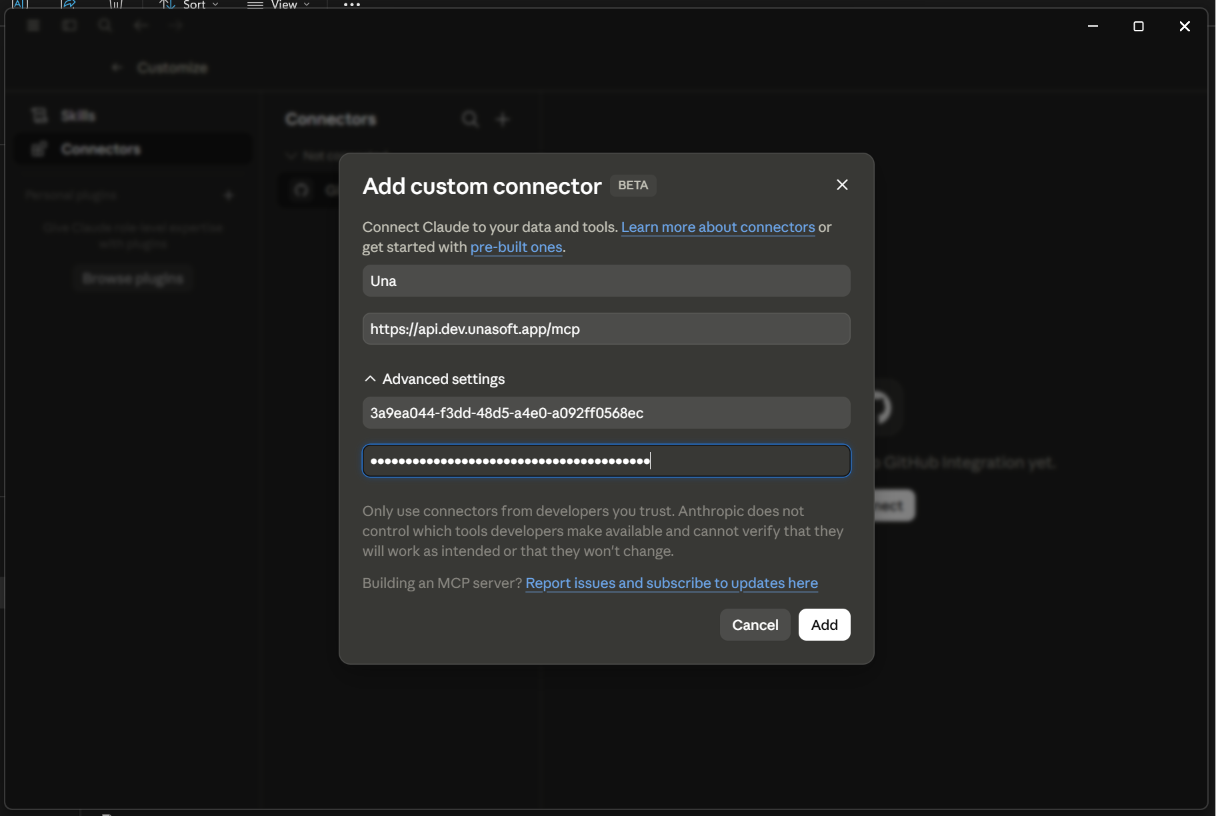
Setup
- Open Claude Desktop.
- Go to Settings → Connectors → Add Custom Connector.
- Fill in the connector details:
| Field | Value |
|---|---|
| Name | Una |
| URL | Your MCP endpoint (see MCP URL) |
| Client ID | 3a9ea044-f3dd-48d5-a4e0-a092ff0568ec |
| Client Secret | ue28Q~TlOCwItWo8~2zWLNmspxrRzMx~Q42aIb8i |
Once connected, Una's tools will appear in Claude's tool list. You can ask Claude to run Una queries, read files, or manage actions directly in the chat.
ChatGPT
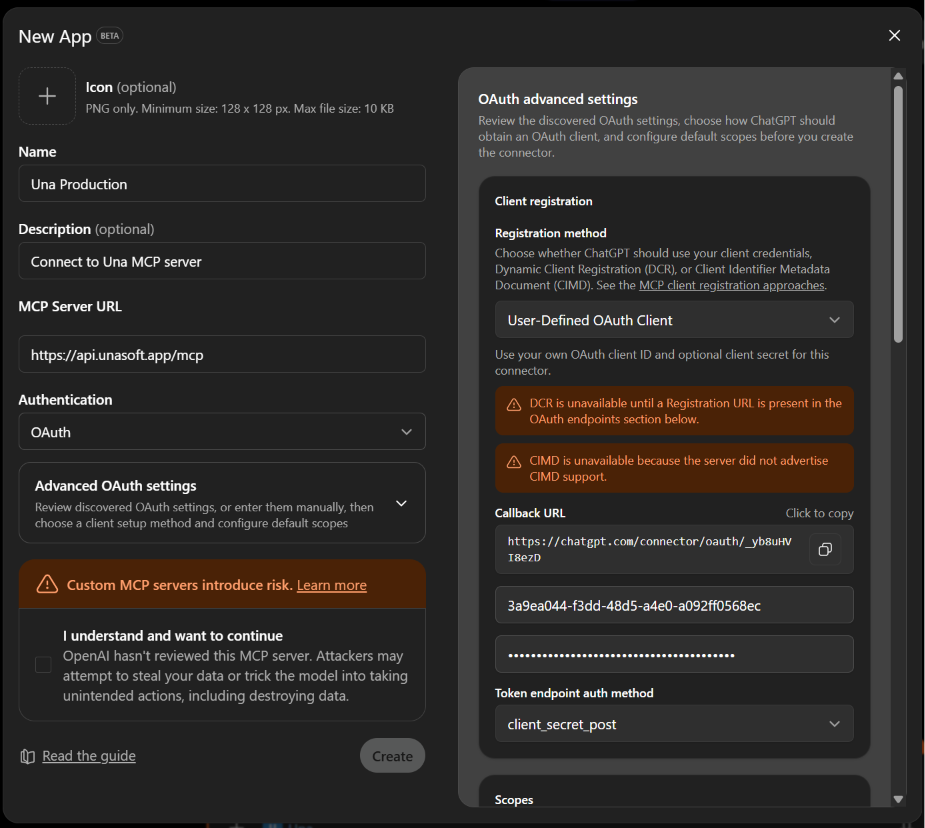
Setup
- Go to ChatGPT on the web and open Settings → Apps → Advanced Settings.
- Enable Development Mode.
- Go to Settings → Apps → Create App and fill in the app details:
| Field | Value |
|---|---|
| Name | Una |
| Description | Connect to Una for queries, file access, and actions |
| URL | Your MCP endpoint (see MCP URL) |
| Client ID | 3a9ea044-f3dd-48d5-a4e0-a092ff0568ec |
| Client Secret | ue28Q~TlOCwItWo8~2zWLNmspxrRzMx~Q42aIb8i |
GitHub Copilot
GitHub Copilot connects to MCP servers via a configuration file in your VS Code workspace.
Setup
-
Generate an API Token in the Una Portal under Settings → API Tokens.
-
In your project, open or create
.vscode/mcp.jsonand add the Una server entry:
{
  "servers": {
    "una": {
      "type": "http",
      "url": "https://api.unasoft.app/mcp",
      "headers": {
        "x-api-token": "<your-api-token>",
        "tenant": "<your-tenant-name>"
      }
    }
  }
}
Replace <your-api-token> with the token you generated and <your-tenant-name> with your Una tenant name. Update the URL if you are connecting to a non-production environment.
- Reload VS Code.
Copilot Chat will now be able to call Una tools when answering questions that require data from your Una environment.